Introduction
System Requirements
Installation Process
Initial Setup and Authentication
Data Synchronization
Creating and Managing Tasks
User Roles and Permissions
Support and Resources
Verifi is an AI-productivity tool for accounting professionals. Verifi lives inside of your e-conomic and helps with Quality Control and daily task management without disrupting your existing workflow.
Key Benefits:
Automated financial reconciliation
Task creation and assignment
Real-time data visibility
Collaborative workflow management
Browser Compatibility:
Google Chrome (recommended)
Microsoft Edge
Other Chromium-based browsers
ERP System:
Active e-conomic account with valid credentials
Account:
Valid company email address for Verifi account creation
Option to use Google or Microsoft Single Sign On
Navigate to the Chrome Web Store
Search for "Verifi - AI Financial Assistant" or use the direct link provided by your administrator
Click the blue "Add to Chrome" button
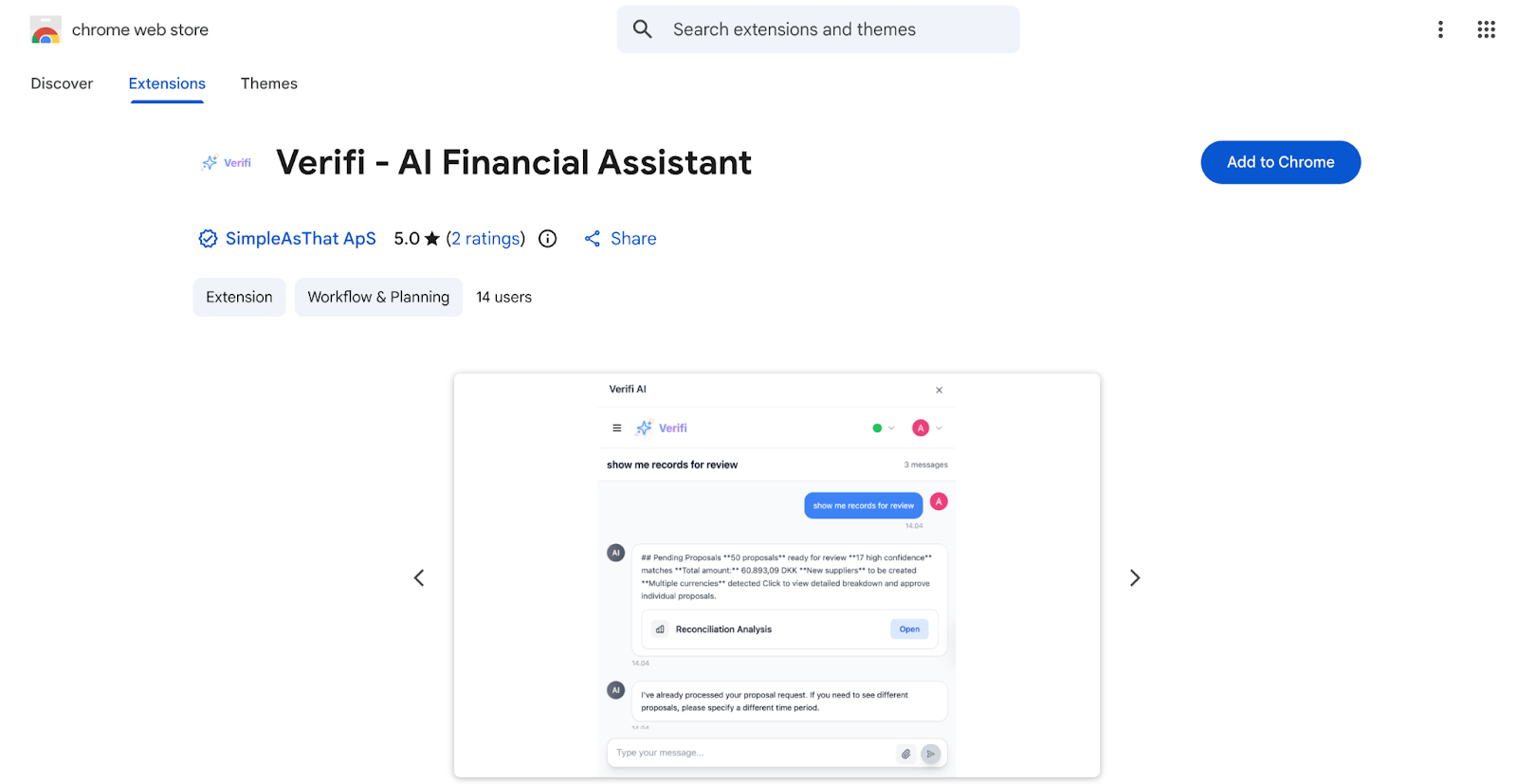
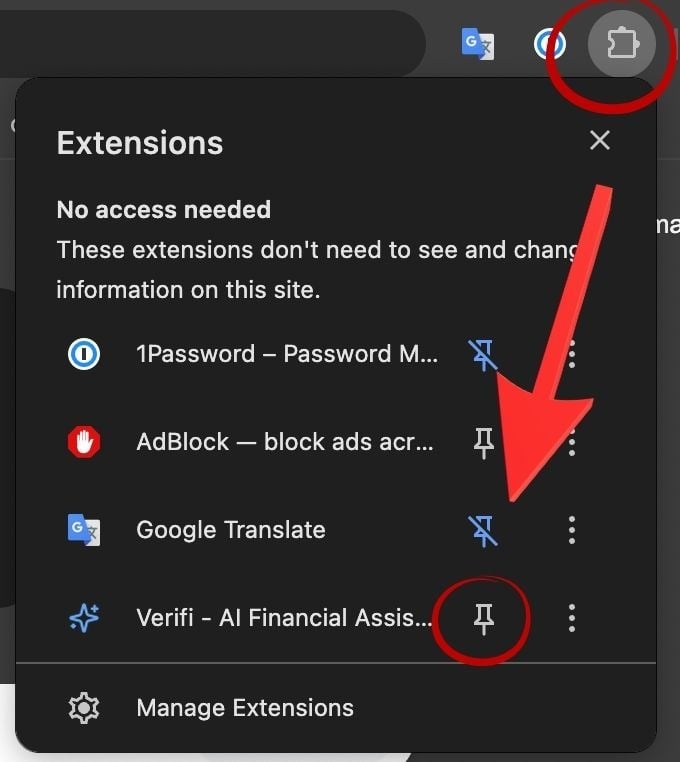
After installation, pin Verifi to your browser toolbar for easy access:
Click the puzzle piece icon in your browser toolbar (Extensions menu)
Locate "Verifi - AI Financial Assistant" in the list
Click the pin icon next to Verifi
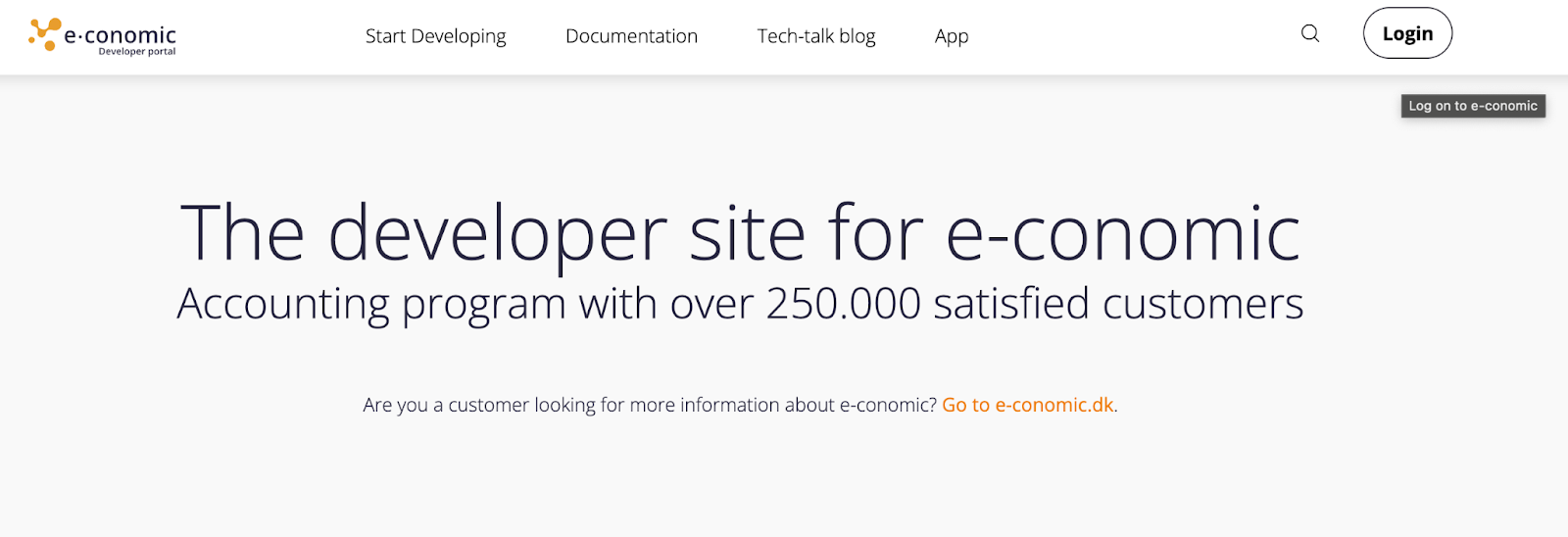
You will need to sign into two places. 1: inside of e-conomic and 2. In your extension browser
Navigate to your e-conomic portal at e-conomic.com
Log in with your e-conomic details
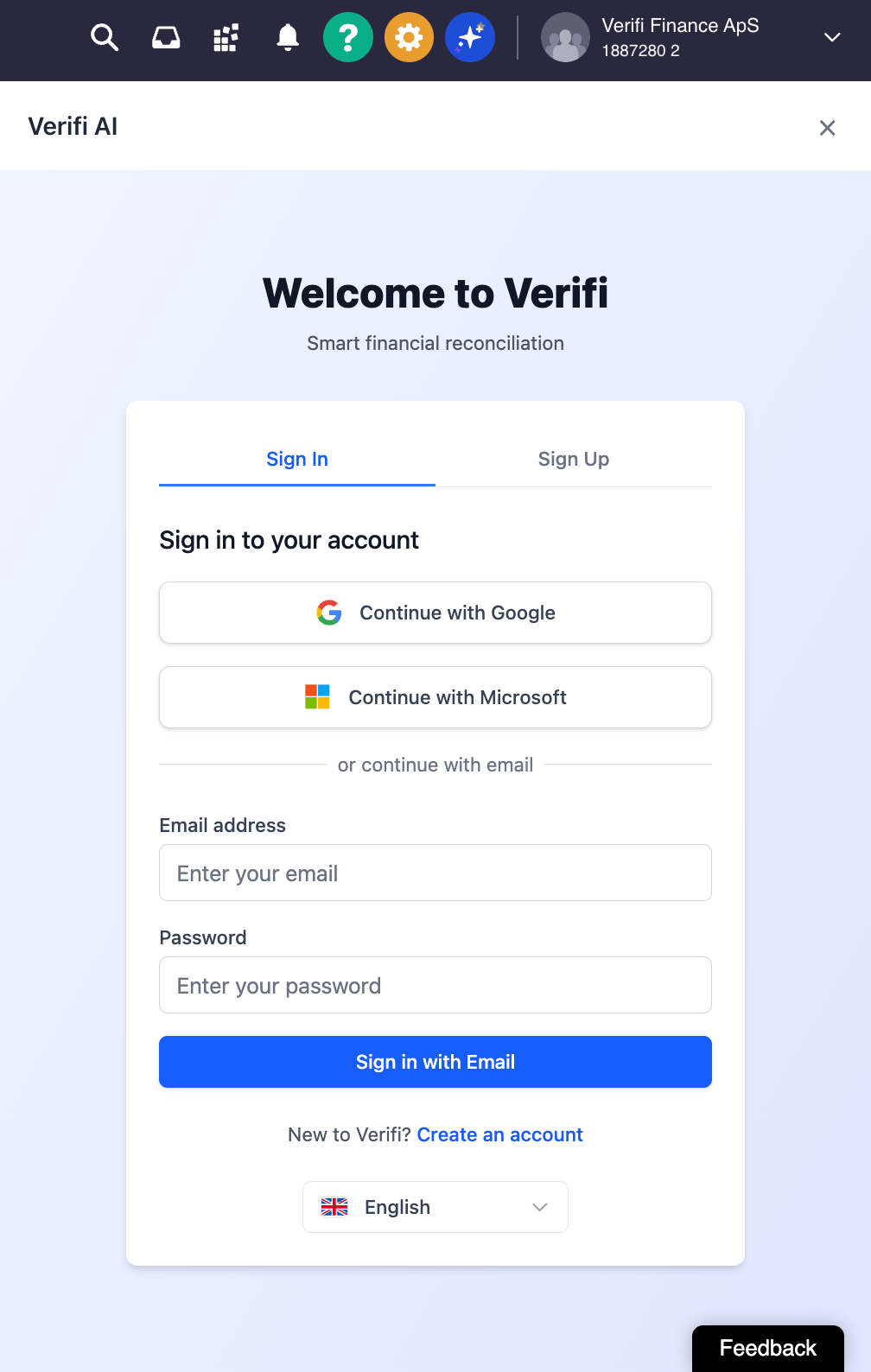
Choose your preferred authentication method:
Option A: SSO (Recommended)
Click "Continue with Google" to use your Google account
Click "Continue with Microsoft" to use your Microsoft account
Option B: Email Authentication
Enter your email address in the "Email address" field
Create a secure password in the "Password" field
Click "Sign in with Email"
For new users: Click "Create an account" at the bottom of the sign-in screen to register.
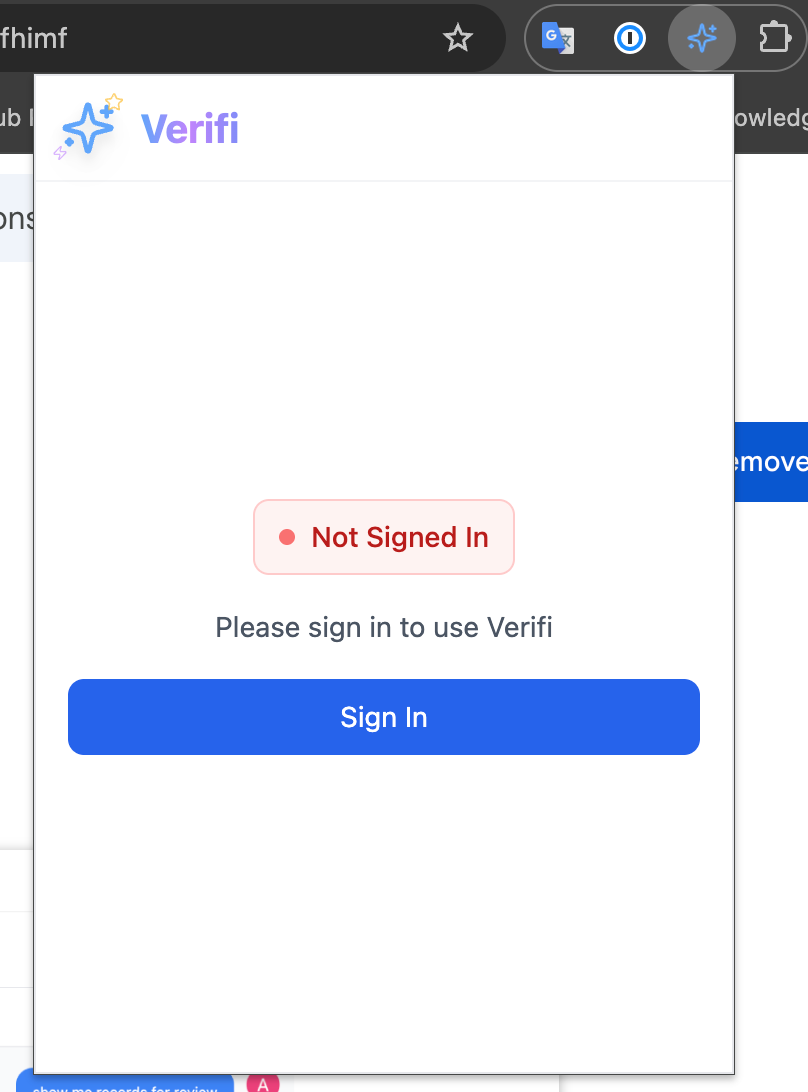
Once logged into e-conomic and Verifi inside of e-conomic, click the Verifi icon in your browser toolbar and sign in with your work email address.
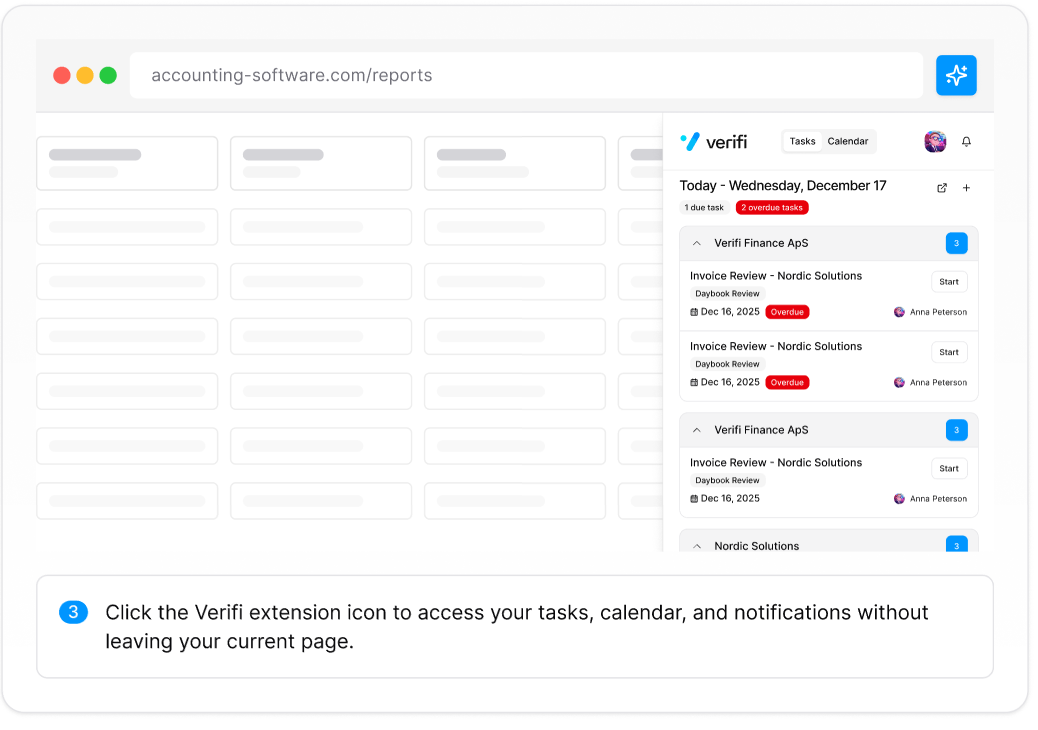
You are now logged in! This is how you should be seeing Verifi on top of your e-conomic:
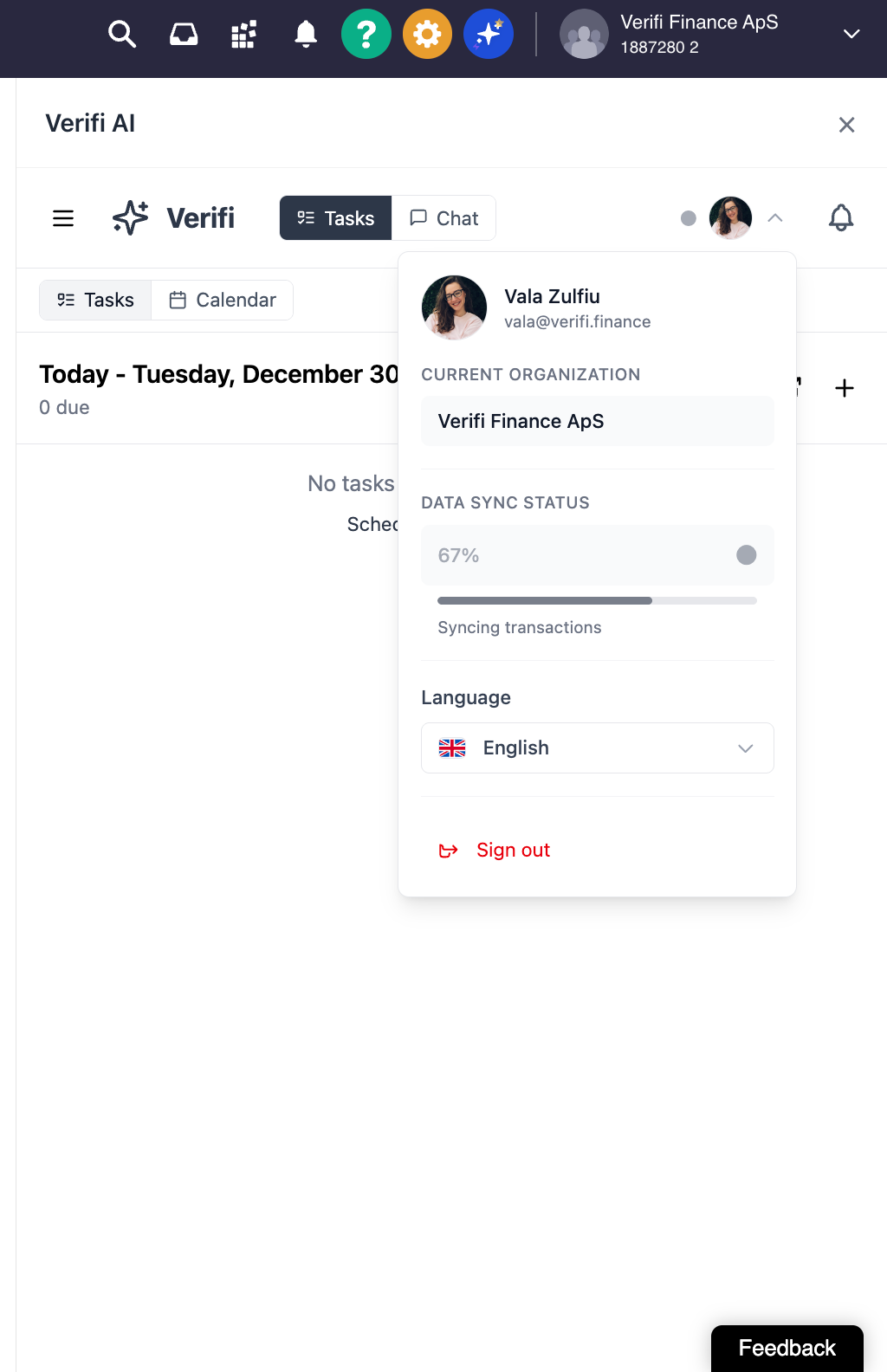
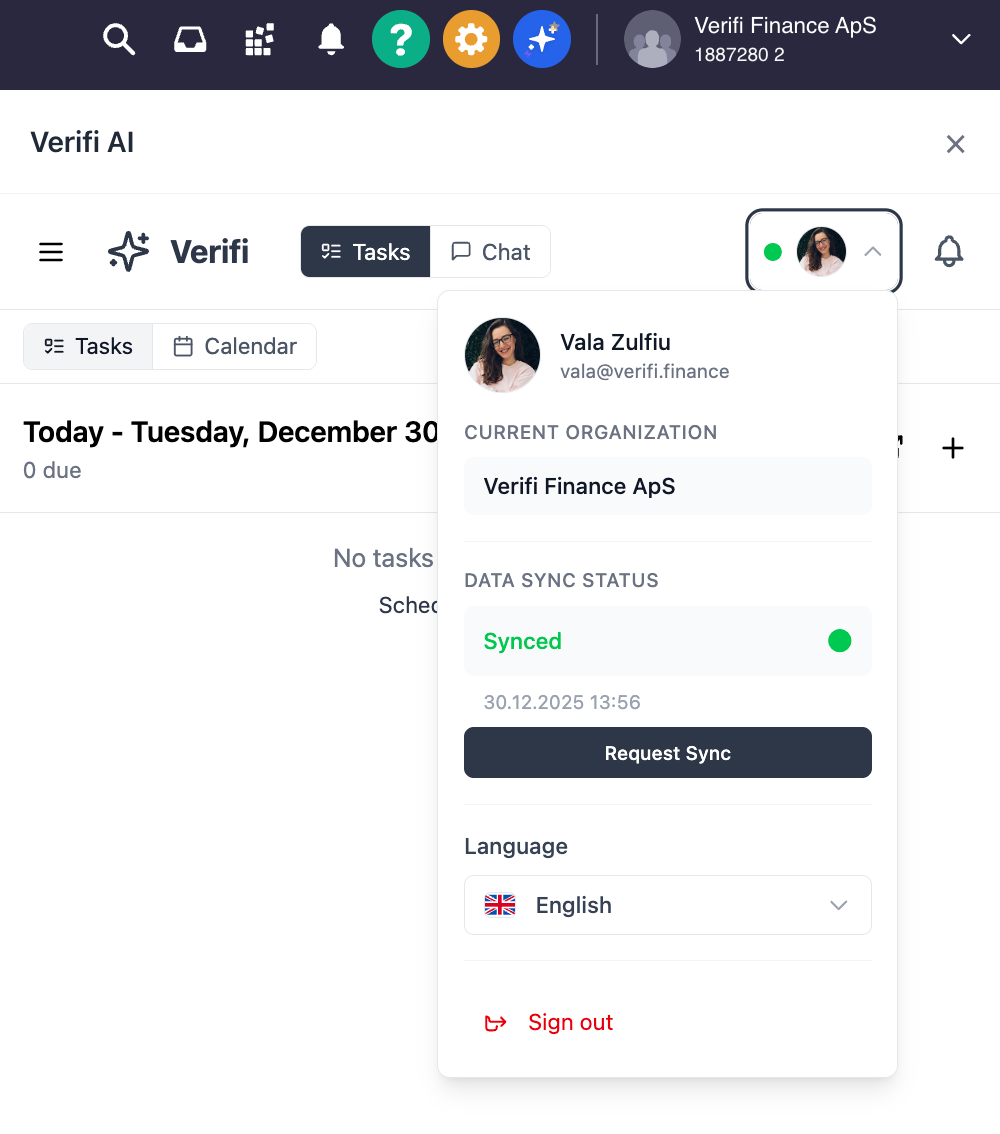
Before you can begin working with Verifi, your data needs to be synced. To make sure that’s done:
Click on your profile picture or user menu in the top-right corner of Verifi
Review the "DATA SYNC STATUS" section
Click the "Request Sync" button to initiate data synchronization
What it looks like syncing:
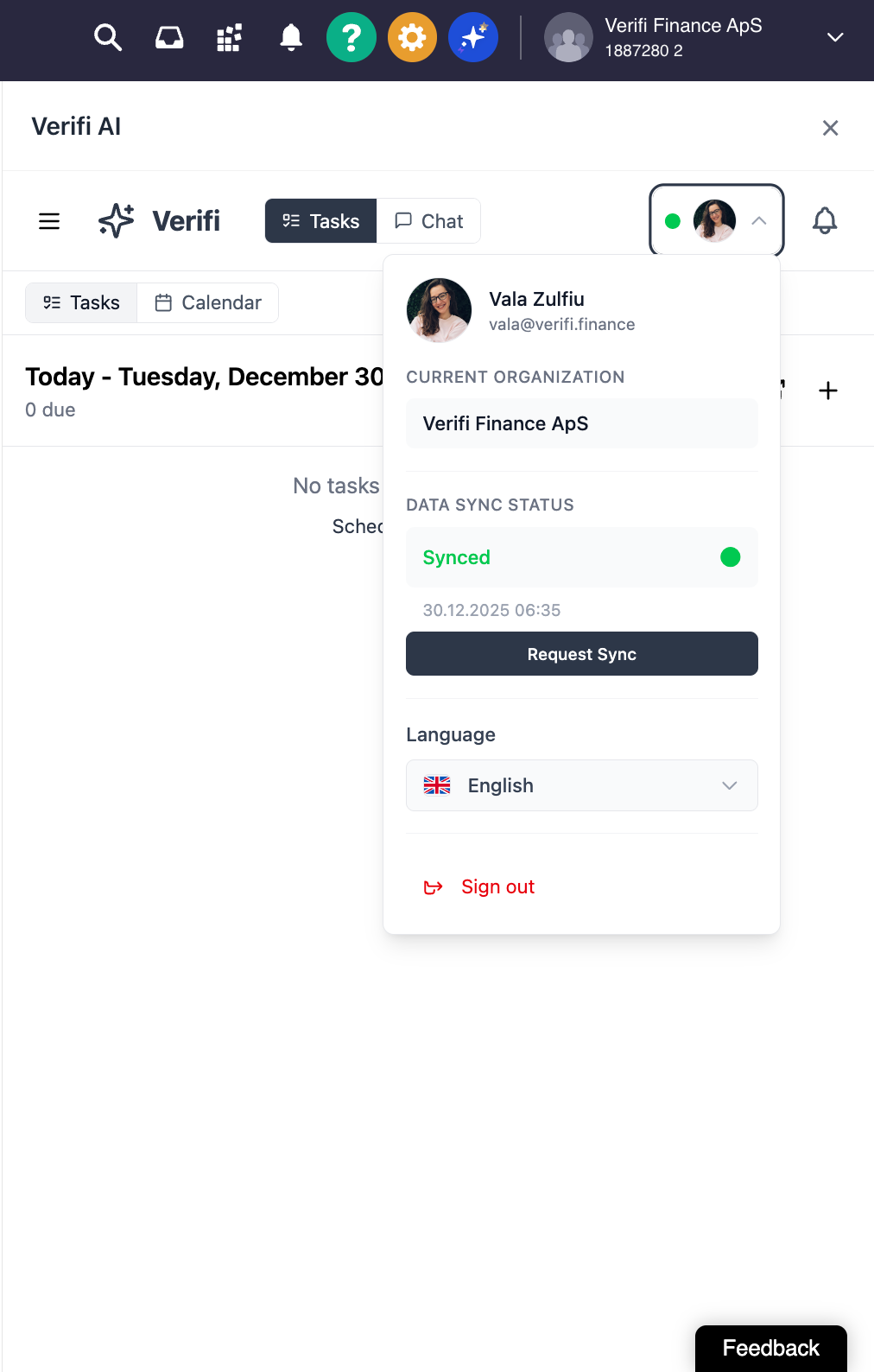
What it looks like when syncing is complete:
Understanding Sync Status:
Synced (green indicator): Your data is up to date
Last sync timestamp: Shows when data was last synchronized (e.g., "30.12.2025 06:20")
Note: The initial sync may take several minutes depending on the volume of data in your e-conomic account. Subsequent syncs will be faster.
Navigate to the Tasks tab in the Verifi interface
Click the "+ New Task" button
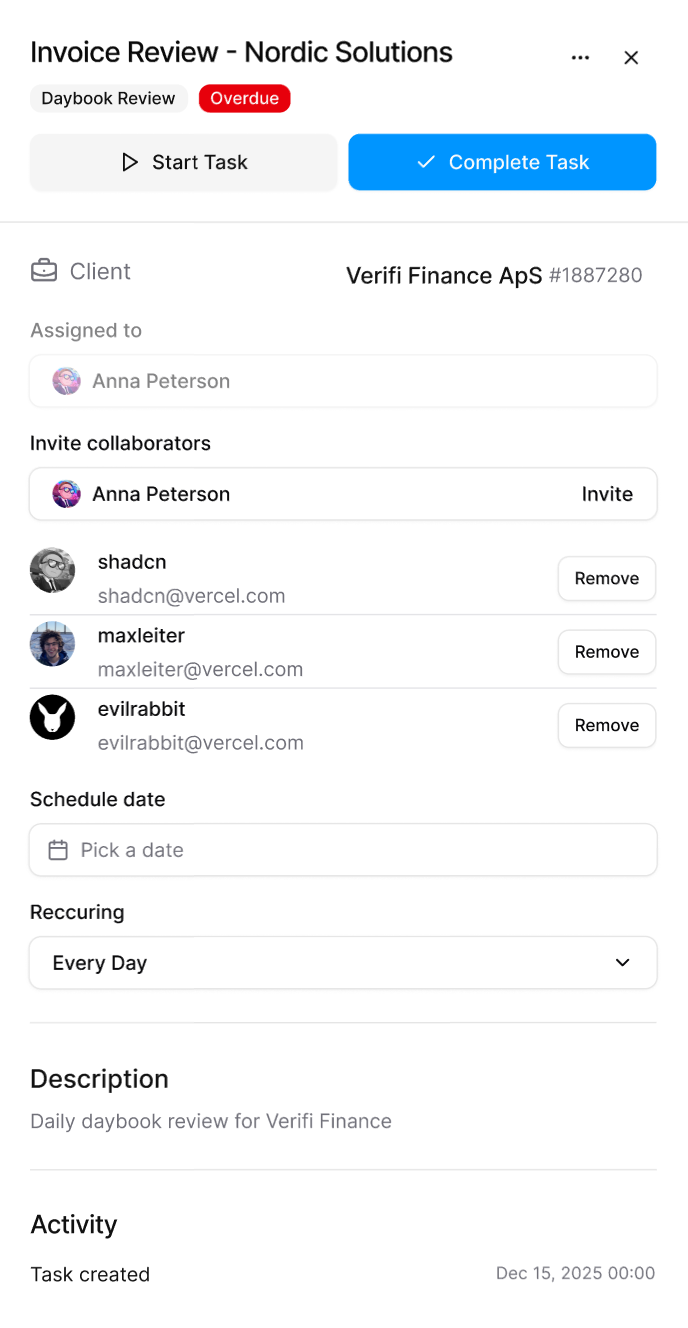
Complete the task creation form
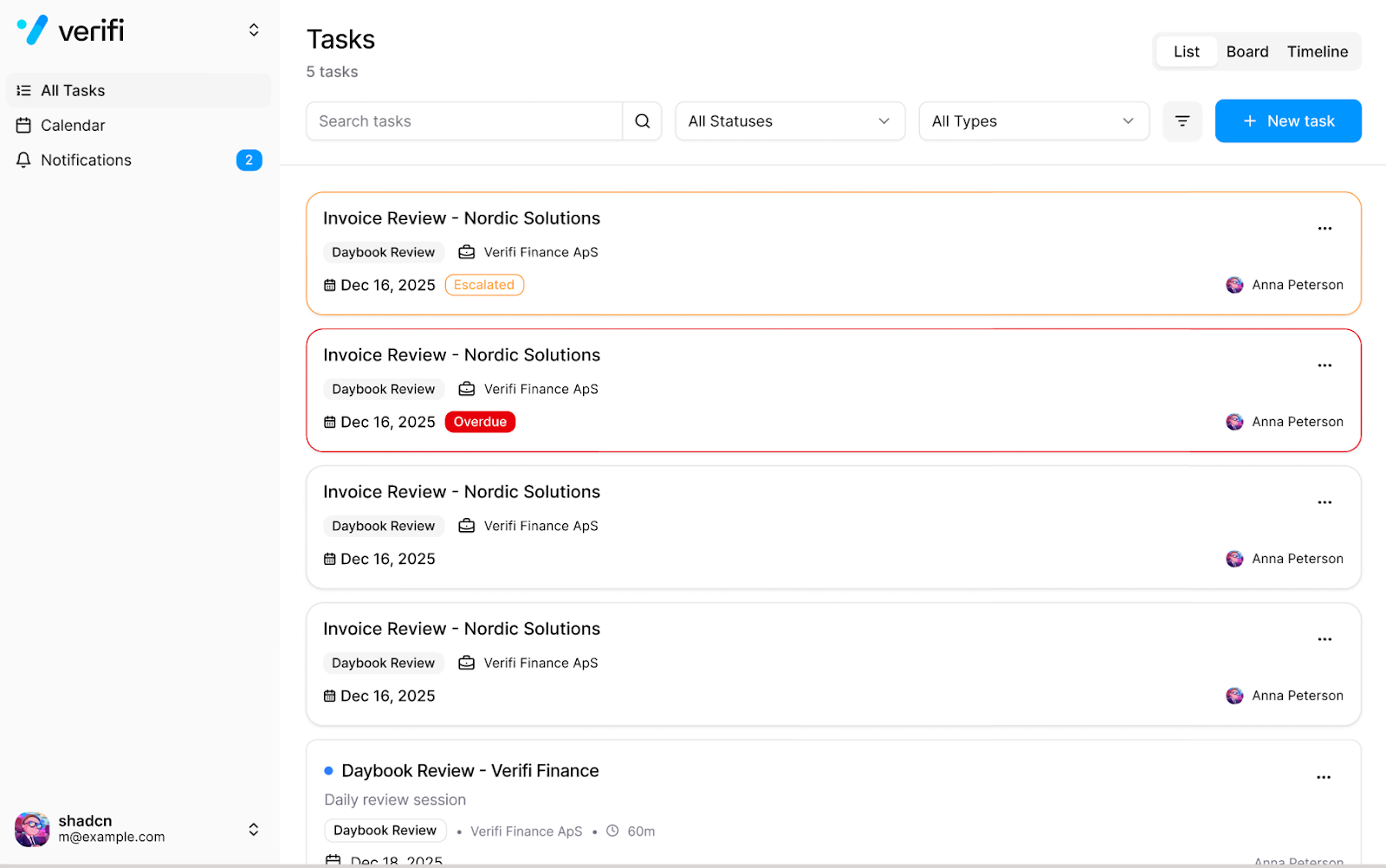
Task Creation Fields:
Verifi supports three distinct user roles, each with specific capabilities and access levels.
Full system access
Can create, edit, and delete all tasks
Access to all dashboard reports and analytics
Can manage user permissions
Can invite and remove team members
Can create and manage tasks
Access to comprehensive dashboard reports
Can assign tasks to team members
Limited administrative functions
Can view assigned tasks
Can complete and update task status
Limited dashboard access
Cannot create tasks for others
Note: Your role is assigned by your organization's administrator. Role-specific dashboard features and reporting capabilities will be visible based on your assigned permissions.
In addition to the browser extension, you can access Verifi through the standalone web application at verifi.finance for expanded functionality and reporting.
Change your interface language by:
Clicking your profile menu
Selecting "Language"
Choosing your preferred language from the dropdown
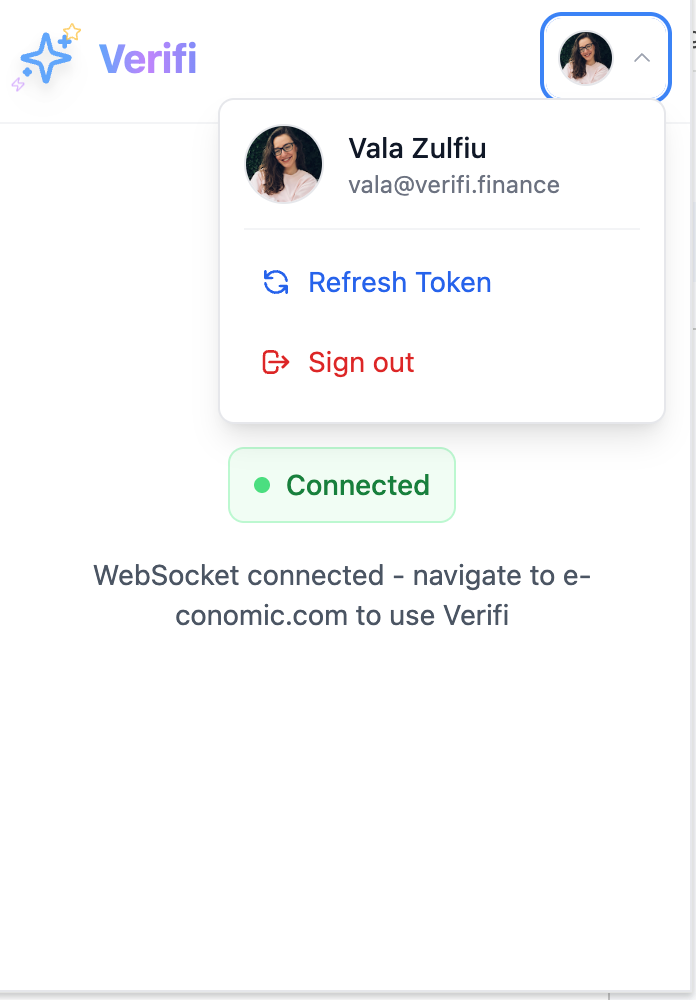
Extension Not Loading:
Make sure your are logged in on your extension bar
Click Refresh Token
Refresh your browser page
If needed, uninstall extension and reinstall
Data Not Syncing:
Check your internet connection
Click "Request Sync" manually
Cannot Assign Tasks:
Confirm the recipient has a Verifi account
Ensure you are a Role that can create tasks (for example, Assistants cannot create tasks)
Check that you have selected a valid task type
For technical support or questions:
Submit feedback using the "Feedback" button inside of Verifi
Email support at support@verifi.finance
Install Verifi extension from Chrome Web Store
Pin extension to browser toolbar
Log into e-conomic
Click Verifi extension icon
Sign in or create Verifi account in both the extension bar and inside of Verifi inside your ERP
Request initial data sync
Wait for sync to complete (check green "Synced" status)
Create your first task or review assigned tasks
Familiarize yourself with the Tasks and Calendar views
Set up recurring tasks as needed
Document Version: 1.0
Last Updated: December 30, 2025
Published by: Verifi Finance ApS
